Whisper AI

Whisper AI

0 min left

Dashboard

New Transcription
0 min

How do you want to transcribe?

Upload Audio
Estimated cost: 0 min

Free minutes are included. Upload a file or record audio to start.

From a recorded lecture to topic-by-topic study notes

AI Lecture Notes from Recordings

Use this lecture notes AI tool to turn a recorded class into organized study notes. Upload or record the lecture, let Whisper AI produce a timestamped transcript, then generate an overview, key ideas, and topic sections you can check against the original explanation and copy for revision. New verified accounts start with 5 transcription minutes; generating the notes is a separate AI action that shows its credit estimate before it runs.

  • Upload a lecture recording, record in the browser, or import a supported media URL
  • Overview, key ideas, and topic sections built from the transcript
  • Full timestamped transcript kept beside the notes
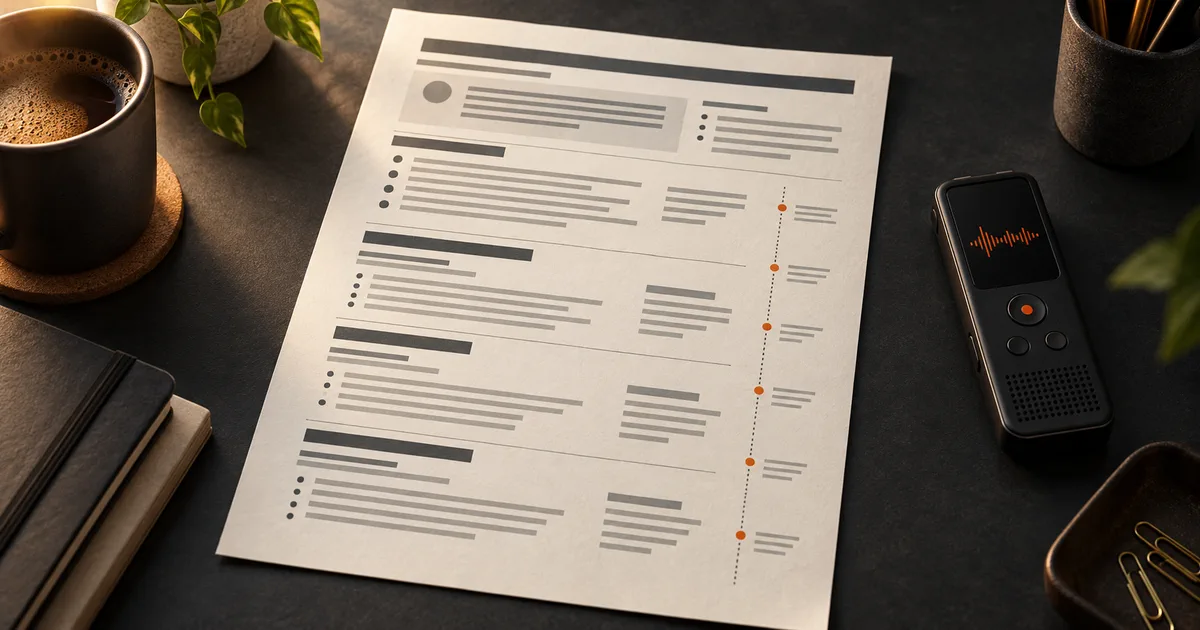
Lecture recording being turned into organized AI lecture notes with key ideas and topic sections

Workflow

Turn lecture audio into organized notes

Step 1

Start from the lecture recording

Upload the lecture file, record the class in the browser, or import a supported media URL. Pick the spoken language when you know it so the recognizer is prepared, then wait for the timestamped transcript. That transcript is the evidence every note is built on, so a clean recording with audible speech gives the most reliable starting point.

Step 2

Generate the lecture notes

Open the completed transcription and run the existing AI summary action. For a lecture this returns an overview, key ideas, and topic sections, with timestamps when the recording supports them. The action shows its credit estimate before it is submitted, so opening the page never spends credits on its own.

Step 3

Check the notes before you revise

Read the overview first, then work through the key ideas and topic sections against the transcript. If a name, date, formula, or technical term was misheard, correct it in the transcript and regenerate the notes so the draft matches what was said. Treat a point the lecturer never actually made as a signal that the transcript needs another pass, and keep the notes as a study draft rather than a substitute for the lecture.

Sample output

Example: a three-minute lecture explanation

Illustrative sample based on a 3-minute recorded explanation

The illustration below shows how lecture notes are structured. It is a shortened example, not a stored customer recording, and every point maps back to the transcript and its timestamps.

Overview

The lecture defines opportunity cost, works through one worked example, and closes by correcting a common mistake about what the term does and does not include.

Key ideas

  • Definition: opportunity cost is the value of the next-best alternative you give up when you make a choice.
  • Worked example: choosing to study for two extra hours instead of taking a paid shift makes the forgone shift the opportunity cost.
  • Correction: opportunity cost covers the single best alternative forgone, not the sum of everything you could have done.

Topic sections

  • Definition (0:00-0:55)Introduces opportunity cost and states that it is measured against the next-best alternative, not against every other option.
  • Worked example (0:55-2:05)Applies the definition to two hours of study versus a paid shift and identifies the forgone shift as the cost.
  • Final correction (2:05-3:00)Warns that adding up all forgone options overstates the cost, and repeats the single-best-alternative rule.

The example keeps the definition, the worked example, and the closing correction in separate topic sections. The final correction is kept as its own chapter instead of being folded into the definition, so a reader who jumps to a section does not lose the qualification that changes the meaning.

Review

Review key ideas by topic

Confirm each key idea was actually stated

A key idea belongs in the notes only when the recording supports it. If the lecturer raised a topic but left it open, keep it described as an open point instead of turning it into a definition. Replay the timestamp beside any idea that carries a formula, a date, or a marked exam hint.

Keep the example attached to its concept

Examples are easy to detach from the idea they explain. Check that each worked example still sits under the right key idea, and that the numbers and units in the example match what the lecturer said. An example that drifted to the wrong concept is more misleading than no example at all.

Preserve corrections and qualifications

Lecturers often correct themselves near the end of a topic. Treat that correction as part of the definition rather than a footnote, because it usually narrows the meaning. Before you revise, make sure the notes still carry the final version of the explanation.

Source of truth

Revisit the original explanation

The transcript stays beside the notes in the same workspace, with timestamps when the recording supports them. Use it whenever a note is unclear, incomplete, or hard to trust, so you can hear the exact wording instead of guessing from the summary.

  • Replay a topic section by its timestamp to hear the explanation in the lecturer's own words.
  • Search the transcript for a term, name, or figure and jump straight to the moment it was introduced.
  • Keep the transcript with the recording when a note will feed into an assignment or an exam answer.
  • Re-generate the notes only after the transcript changes, so an old draft is never mistaken for the latest version.

Handoff

Copy the AI lecture notes for revision

Once the draft matches the lecture, copy the overview, key ideas, and topic sections into the notes app or document you already revise from. Keep the transcript linked to the recording so you can return to the source when a point matters.

  1. Copy the overview and key ideas into your revision document, course by course.
  2. Paste the topic sections as headings so you can study one concept at a time.
  3. Keep the timestamps when you study with the recording, and drop them for a clean printed sheet.
  4. Export or keep the transcript so you can confirm definitions, examples, and corrections later.

Commercial comparison

Whisper AI vs commercial note suites vs manual notes

Whisper AI details were checked on 2026-09-23. Competitor categories change often, so confirm live terms on the provider's own site before you depend on them.

Whisper AI vs commercial note suites vs manual notes
Decision factorWhisper AICommercial note suitesManual notes
How the lecture enters the workflowUpload an existing lecture recording, record in the browser, or import a supported media URL; nothing has to join a live class.Often tied to a live meeting or classroom integration, so the recording depends on the assistant being present and permitted.Depends on writing fast during the lecture or re-listening to the whole recording afterwards.
What the notes includeOverview, key ideas, and topic sections, with the full timestamped transcript kept beside them.Summaries and action items aimed at teams; the exact study fields and transcript access vary by product and plan.Whatever you managed to write down, which is rarely complete and hard to check later.
Traceability to the recordingEvery note is tied to one transcription task and its timestamped transcript, so you can replay a topic before trusting it.Depends on the product; some show a transcript, others only the generated summary.Seldom timestamped and difficult to search once the lecture is over.
Starting cost and control5 transcription minutes after verified signup; generating the notes is a separate AI action with a credit estimate shown first.Free tiers are usually limited by seats, meetings, or features; confirm the live terms before relying on them.No tool cost, but a recurring cost in study time and inconsistent coverage of the lecture.
Best fitStudents and self-learners who already have a lecture recording and want organized notes they can verify against the transcript.Teams that want a live assistant inside scheduled calls and collaborative workspaces.Short lectures where handwriting and memory are enough, and no searchable record is needed.

Choose Whisper AI when the lecture recording already exists and the goal is organized study notes you can trace back to the transcript. A commercial note suite can fit teams that want a live assistant inside scheduled sessions, but check its current recording, transcript, and plan terms before you depend on it, and keep checking any definition or correction against the original explanation.

Before you begin

Limits worth knowing

  • Verified signup is required before the 5 transcription minutes are granted, and the available balance must cover the task.
  • A single transcription is limited to 60 minutes; a longer lecture must be split before upload.
  • The lecture notes are a separate paid AI action. The page shows the credit estimate before submission; opening the page never charges credits.
  • Automatic speech recognition and AI notes can mishear names, numbers, formulas, acronyms, and accented speech, and can miss a spoken correction.
  • Do not treat generated notes as a verified record. Check definitions and corrections against the recording, and keep the transcript when a point matters.
  • Only upload or record lectures you are authorized to process, and follow your course or institution's consent and recording rules.

Clear answers

Frequently asked questions

Can I upload a recorded lecture?

Yes. Upload the lecture audio or video file, record the class in the browser, or import a supported media URL, then run the AI action on the completed transcript. Whisper AI returns an overview, key ideas, and topic sections that you can review against the transcript before you copy them. Because it works from a recording, no assistant has to attend the live class.

Can I view the transcript with my notes?

Yes. The full transcript stays beside the notes in the same workspace, with timestamps when the recording supports them. Use it to confirm a definition, replay the worked example, or check the final correction in the lecturer's own words before you trust the note.

Can I copy the notes for revision?

Yes. Copy the overview, key ideas, and topic sections into your notes app, document, or printed revision sheet. Review each point against the transcript first and fix any misheard name, figure, or term, so you study from a checked draft rather than the raw output.

What do the AI lecture notes include?

The action returns an overview, a list of key ideas, and topic sections that map to parts of the lecture, plus keywords when the recording supports them. It does not invent exam questions, read slides or PDFs, or build a cross-course knowledge base; it organizes the spoken content of the recording you provide.

Does the lecture notes tool work for another language?

The transcript language follows the spoken language you select and what the transcription service supports. The notes are generated from that transcript, so choose the correct spoken language before you start. The notes are not a translation of the lecture unless you use a translation workflow on purpose.

How are lecture notes credits calculated?

Generating the notes is one of the existing paid AI actions. Before it runs, the workspace shows the credit estimate derived from the transcript length and the action. Transcription minutes and AI credits are separate, and simply visiting this page never charges anything.

Evidence

Sources and methodology

Written and checked by Whisper AI Editorial Team · Last reviewed 2026-09-23 · Editorial policy

Continue the job