Whisper AI

Whisper AI

0 min left

Dashboard

New Transcription
0 min

How do you want to transcribe?

Upload Audio
Estimated cost: 0 min

Free minutes are included. Upload a file or record audio to start.

From a recorded conversation to a reviewable minutes draft

AI Meeting Minutes Generator

Use this AI meeting minutes generator to turn a meeting recording into a structured minutes draft. Upload or record the conversation, let Whisper AI produce the transcript, then generate an overview, key points, decisions, and action items you can review, edit, and copy for your team. New verified accounts start with 5 transcription minutes; the meeting summary is a separate AI action that shows its credit estimate before it runs.

  • File upload, browser recording, or supported media URL
  • Structured overview, decisions, and action items
  • Full transcript kept beside the minutes
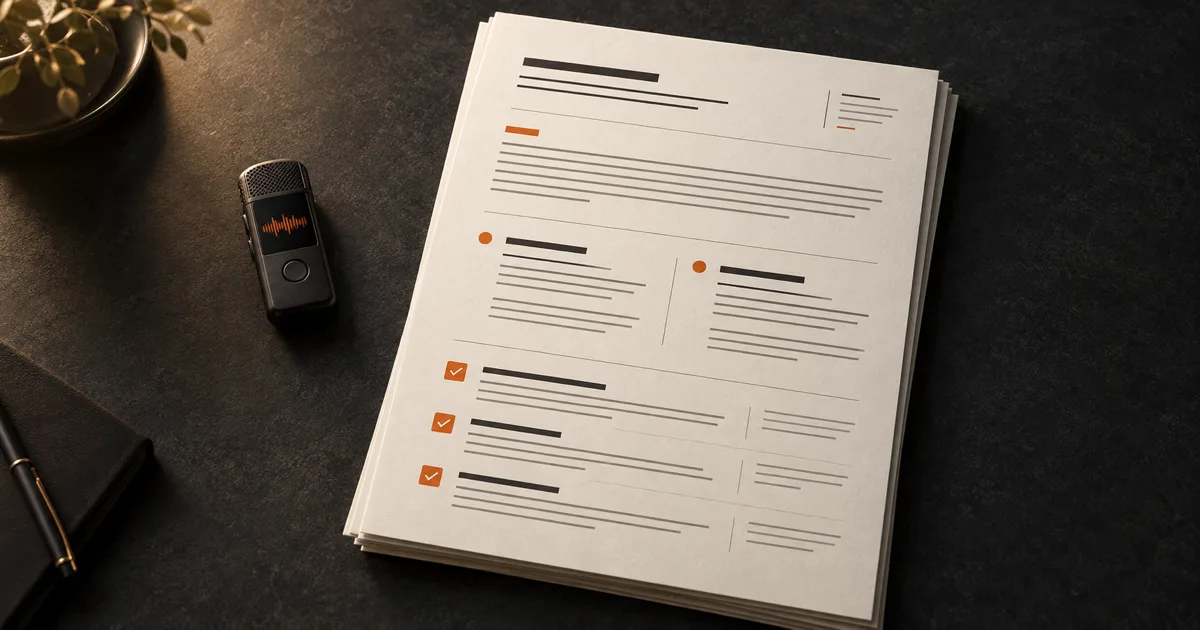
Meeting recording being turned into structured minutes with decisions and action items

Workflow

Turn a meeting recording into minutes

How this AI meeting minutes generator works

Step 1

Start from the meeting recording

Upload the meeting file, record the conversation in the browser, or import a supported media URL. Choose the spoken language when you know it, and enable optional speaker labels for multi-person meetings. The first result is a timestamped transcript, which is the evidence the minutes are built on.

Step 2

Generate the meeting summary

Open the completed transcription and run the existing AI summary action. The summary returns an overview, key points, decisions, and action items, plus chapters and keywords when the recording supports them. The action shows its credit estimate before it is submitted, so nothing is charged just by opening the page.

Step 3

Edit the draft before you share it

Correct names, numbers, owners, and dates against the transcript, remove anything that was not actually said, and keep unresolved items as open questions. The minutes are a draft you control, not an automatically verified record.

Sample output

Example: a short three-person project check-in

Illustrative sample based on a 12-minute project check-in recording

The illustration below shows how a meeting summary is structured. It is a shortened example, not a stored customer recording, and every line maps back to the transcript.

Overview

The team reviewed the launch checklist, agreed to move the beta date, and left the pricing page copy unresolved. Two owners were assigned follow-up work.

Decisions

  • Move the beta release from the 18th to the 25th so the onboarding fix can land first.
  • Keep the current free allowance and revisit it after the beta feedback round.

Open question

  • Who owns the final review of the pricing page copy before launch?

Action items

  • Fix the onboarding redirect and post the updated build in the shared workspace.
  • Draft the beta announcement and circulate it for comments before the 25th.

The example keeps two decisions, one open question, and two action items. It does not invent a decision when the conversation only raised a question, and it does not add a due date that was not stated.

Review

Review decisions and action items

Check decisions against the transcript

A decision should only appear when the recording shows the team agreeing to it. If a topic was discussed but not settled, it belongs in open questions rather than in the decisions list. Replay the timestamp for any decision that carries cost, legal, or staffing consequences.

Keep action items and their owners grounded

Action items are only useful when they name the real task. If the recording did not state an owner or a due date, leave that field open instead of guessing. Fabricated owners and invented deadlines are the fastest way to lose trust in a minutes draft.

Use the transcript as the source of truth

The full transcript stays available beside the summary. Use it to confirm quotations, allocate speakers, and correct names, product terms, and numbers that automatic speech recognition may have misheard. Minutes that cannot be traced back to the recording are hard to defend.

Handoff

Copy the AI meeting minutes generator output for your team

Once the draft is accurate, copy the minutes into the tool your team already uses. Keep the transcript with the recording when the meeting produced commitments that may need to be re-checked later.

  1. Copy the overview, decisions, and action items into your notes, email, or document.
  2. Paste action items into your task tracker and keep the recorded owner and date only when the meeting stated them.
  3. Export or keep the transcript so reviewers can confirm quotes, names, and figures later.
  4. Re-run the summary only after the transcript changes, so an old draft is never presented as the latest result.

Commercial comparison

Whisper AI vs meeting-bot assistants vs manual minutes

Whisper AI details were checked on 2026-09-22. Competitor categories change often, so confirm live terms on the provider's own site before you depend on them.

Whisper AI vs meeting-bot assistants vs manual minutes
Decision factorWhisper AIMeeting-bot assistantsManual minutes
How the meeting enters the workflowUpload a recording, record in the browser, or import a supported media URL; no bot has to join the call.Usually joins the meeting live and needs calendar or workspace access, so the recording depends on the assistant being present.Depends on someone taking notes in the room or reviewing a recording afterwards.
What the output includesOverview, key points, decisions, action items, chapters, and keywords, with the full transcript kept beside them.Live notes and a summary; the exact fields and transcript access vary by product and plan.Whatever the note-taker captured, which is often incomplete and hard to trace to the recording.
TraceabilityEvery result is tied to one transcription task and its timestamped transcript, so you can replay a passage before trusting it.Depends on the product; some provide a transcript, others surface only the generated notes.Rarely timestamped or searchable afterwards.
Starting cost and control5 transcription minutes after verified signup; the meeting summary is a separate AI action with a credit estimate shown first.Free tiers are usually limited by meetings, seats, or features; confirm the live terms before relying on them.No tool cost, but a recurring cost in staff time and inconsistent records.
Best fitPeople who already have a recording, want a structured draft, and need to check it against the transcript.Teams that want a calendar-connected assistant to attend live calls.Very small or informal conversations where a full minutes trail is not required.

Choose Whisper AI when the recording already exists and the deliverable is a reviewable minutes draft you can trace back to the transcript. A meeting-bot assistant can fit teams that want a live participant, but check its current recording, transcript, and plan terms before you depend on it, and keep a human reviewer on any decision that carries real consequences.

Before you begin

Limits worth knowing

  • Verified signup is required before the 5 transcription minutes are granted, and the available balance must cover the task.
  • A single transcription is limited to 60 minutes; longer meetings must be split before upload.
  • The meeting summary, decisions, and action items are a separate paid AI action. The page shows the credit estimate before submission; opening the page never charges credits.
  • Automatic speech recognition and AI summaries can mishear names, numbers, acronyms, overlapping speech, and accents, and can miss an implicit decision.
  • Do not treat generated minutes as a verified record. Correct owners, dates, and commitments against the recording, and keep unresolved topics as open questions.
  • Only upload or record meetings you are authorized to process, and follow your organization's consent and retention rules.

Clear answers

Frequently asked questions

Can I generate minutes from a recording?

Yes. Upload the meeting file, record in the browser, or import a supported media URL, then run the AI summary on the completed transcript. Whisper AI returns an overview, key points, decisions, and action items that you can review and edit. It works from a recording, so the assistant does not need to have attended the meeting live.

Are decisions and action items editable?

The generated minutes are a draft you can edit before sharing. Correct names, owners, dates, and wording against the transcript, and move anything unsettled into open questions. The tool does not write back a decision that the recording never contained, but you remain responsible for the final version.

Can I return to the full transcript?

Yes. The transcript stays beside the summary in the same workspace, with timestamps when available. Use it to verify quotations, speaker labels, figures, and any decision before you copy the minutes into another system.

Does the meeting minutes generator work without a meeting bot?

Yes. This workflow starts from an existing recording or a browser capture rather than a bot that joins the call. That means the meeting does not need a calendar invitation or a live assistant, but you do need an audio or video file with audible speech.

How are meeting summary credits calculated?

The summary is one of the existing paid AI actions. Before it runs, the workspace shows the credit estimate derived from the transcript length and the action. Transcription minutes and AI summary credits are separate, and the page never charges for simply being visited.

Can I copy the minutes into email or a document?

Yes. Copy the overview, decisions, and action items into your notes, email, or document, and export the transcript separately when you need to preserve the source. Keep the transcript with the recording when the meeting produced commitments that may need to be re-checked.

Evidence

Sources and methodology

Written and checked by Whisper AI Editorial Team · Last reviewed 2026-09-22 · Editorial policy

Continue the job

Related tools