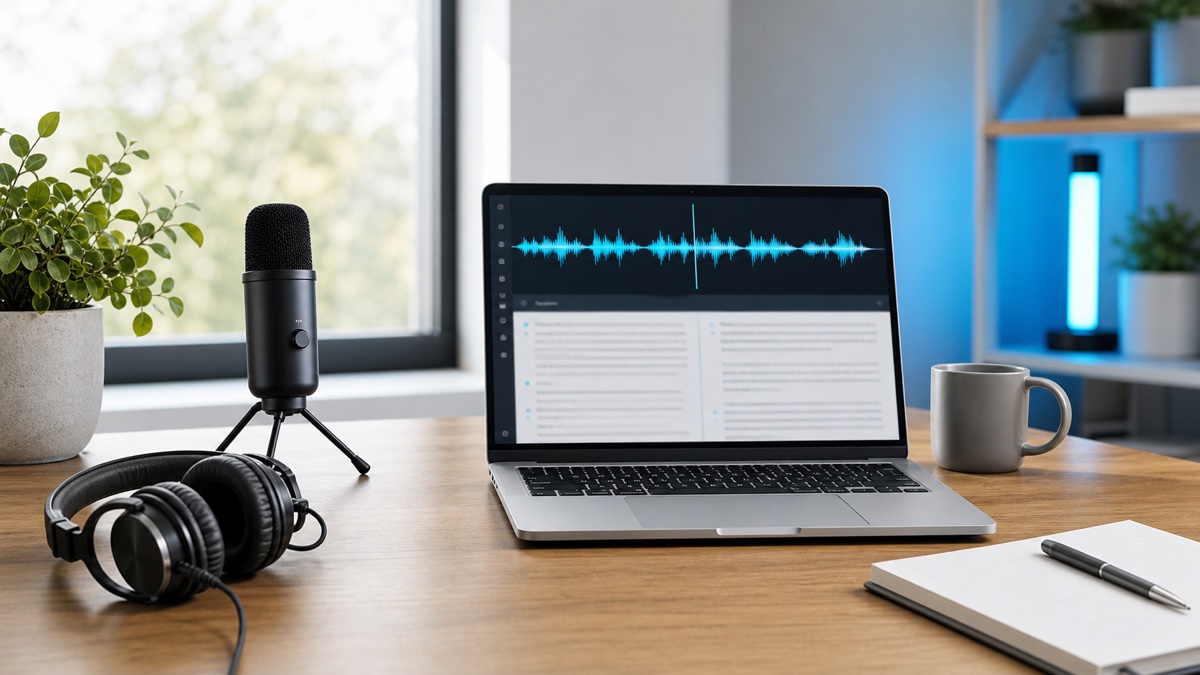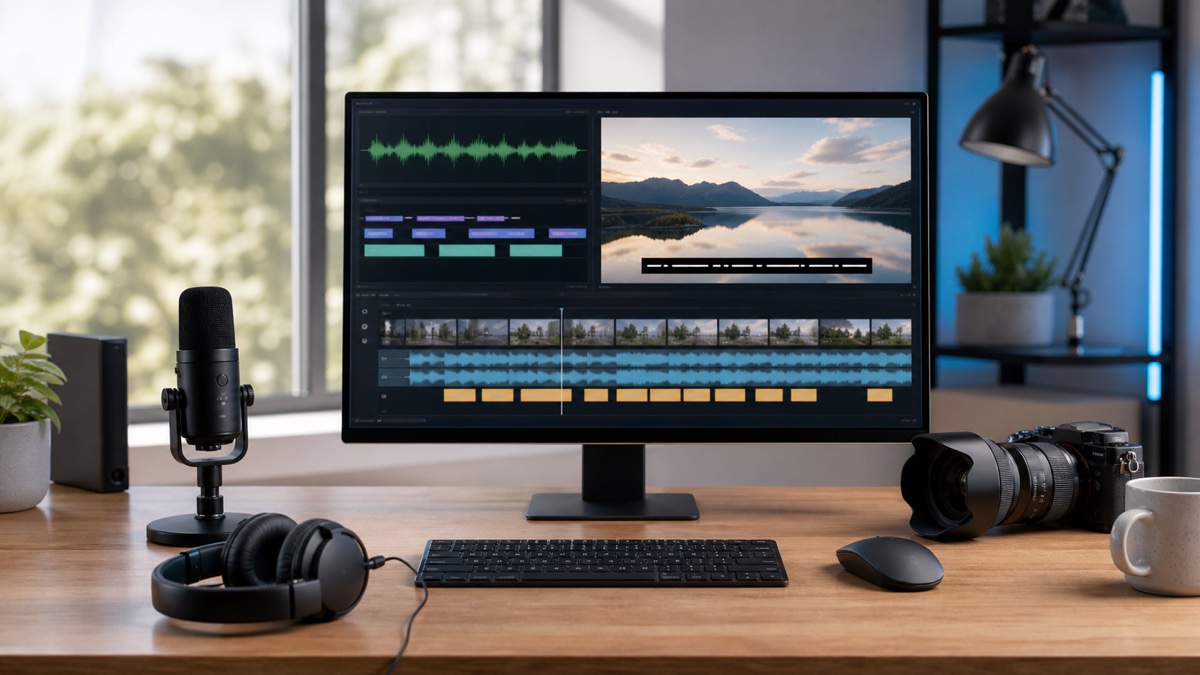
Whisper AI speech to text can help turn audio or video into captions and subtitles that make content easier to watch, search, and reuse. Captions are not only a compliance task. They help viewers who watch without sound, people in noisy environments, multilingual audiences, and editors who need to find the right moment in a video.
The core workflow is straightforward: upload your audio or video, generate a timestamped transcript, review the text, export SRT or VTT, and test the captions in your publishing tool. This guide explains how to make that process cleaner and what to check before you publish.
Captions vs subtitles
People often use the words captions and subtitles interchangeably, but they can mean different things. Captions usually represent spoken dialogue and relevant sound information for viewers who cannot hear the audio. Subtitles often translate or transcribe dialogue for viewers who can hear the audio but need text support.
For most online video workflows, the important point is that both captions and subtitles need text plus timing. A plain transcript is useful, but it will not automatically appear at the right moment in a video player. That is why subtitle formats such as SRT and VTT exist.
The W3C explains why captions and transcripts matter for media accessibility. From an SEO and content operations perspective, captions also make videos easier to repurpose into articles, quotes, and short clips.
Step 1: Use the final media file
Generate captions from the final edited video or audio whenever possible. If you transcribe a rough cut and then edit the video, the timing can drift and the caption file may no longer match. This is especially important for clips, webinars, online courses, and product demos.
If the video has intro music, silent sections, or title cards, decide whether captions should begin immediately or when speech starts. If your platform allows separate transcript and caption uploads, keep both: one for reading and search, one for synchronized playback.
Open the Whisper AI speech to text workspace, upload the final file, and choose the language setting that matches the spoken content. If the video includes several speakers, use speaker labels during review even if you later remove labels from the final captions.
Step 2: Review the transcript for caption quality
Caption review is different from transcript review. A transcript can contain long sentences and paragraphs. Captions need to be easy to read while the video keeps moving. Look for long lines, missing punctuation, incorrect names, and phrases that are confusing without visual context.
Proper nouns deserve extra attention. Brand names, guest names, product features, URLs, and technical terms are the most visible errors in a caption file. They are also the errors viewers remember. Check them before export.
If multiple speakers talk quickly, decide whether speaker labels help or distract. For interviews and panels, labels such as "Host:" and "Guest:" can help. For short social clips, clean captions without labels may be easier to read.
Step 3: Export SRT or VTT
SRT is a widely supported subtitle format and is accepted by many video platforms and editors. VTT is common for web video and supports features used by browser players. MDN's WebVTT API reference is a useful technical reference for teams building web playback.
If you are not sure which format to choose, export SRT first for general video publishing and VTT for web-specific workflows. Keep a plain text transcript too, because the transcript can be useful for blog posts, show notes, documentation, and search.
After exporting, upload the caption file to your video platform or editor and preview the video from start to finish. Do not skip this step. Timing problems are easier to notice during playback than in a text editor.
Caption readability checklist
Before publishing, check the first minute, the middle, and the final minute of the video. Make sure captions appear at the right time, disappear when speech ends, and do not cover important visual elements. If your platform lets viewers choose caption style, test both desktop and mobile playback.
Readability depends on pacing. Very fast captions can feel like another task instead of help. If the speaker talks quickly, split long captions into shorter segments where possible. Keep punctuation natural, because punctuation helps viewers understand the sentence before it disappears.
Finally, confirm that the caption language matches the video metadata. This helps viewers select the right track and helps platforms understand the media.
Using captions for SEO and content reuse
Captions make the video more accessible, but the transcript also creates written material you can reuse. A webinar transcript can become a recap article. A podcast transcript can become show notes. A product demo transcript can become documentation or a tutorial.
For SEO, do not paste an unedited transcript and call it an article. Search engines and readers both prefer helpful, organized content. Use the transcript as source material, then create headings, summaries, examples, and calls to action that match the page intent.
If you need a starting point, transcribe the video in Whisper AI, export the transcript, outline the main sections, and rewrite the best parts into a clear article.
FAQ
Can Whisper AI generate SRT files?
Yes. Use speech to text with timing information, review the transcript, and export the result as SRT for subtitle workflows.
Should I use SRT or VTT?
Use SRT for broad video platform support and VTT for web video workflows. If you are unsure, export both and test them in your publishing tool.
Do captions help SEO?
Captions can support accessibility and content reuse. For SEO, the strongest asset is usually an edited page or article built from the transcript, not a raw transcript dump.