
Dashboard
New Transcription
0 min
How do you want to transcribe?
Upload Audio
Estimated cost: 0 min
Free minutes are included. Upload a file or record audio to start.
Convert audio to word documents on this page: choose a recording, set the spoken language, and start a real transcription task in the workspace below. When the draft is ready, edit the wording, add or merge paragraphs, then download your audio to word document as a DOCX file that matches the version on screen. Paragraph breaks are preserved, timestamps and speaker labels are optional, and the finished task is saved in your recordings. Verified new accounts start with the current transcription-minute allowance, shown before you begin.
Dashboard
How do you want to transcribe?
Free minutes are included. Upload a file or record audio to start.
Verified accounts use the current Whisper AI transcription allowance. Audio is processed by the active cloud transcription provider, the DOCX export is built from your saved edits, and finished tasks are saved in your recordings with the audio-to-word source tag.
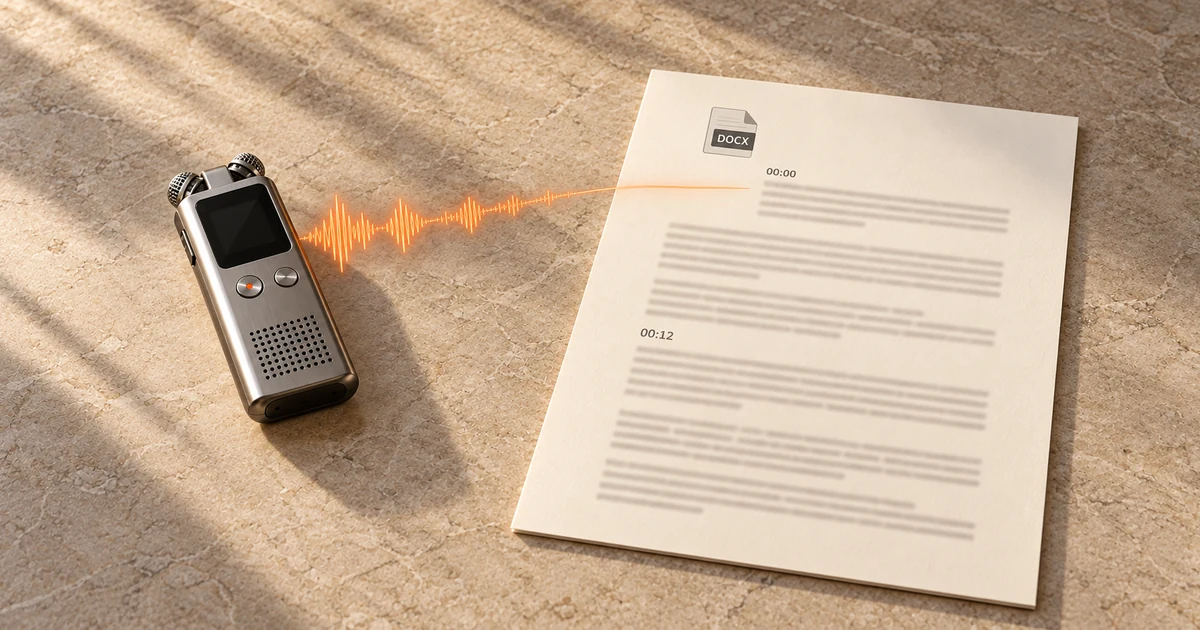
This is the edited DOCX result for a 58-second mixed-language recording. The speaker changes a name, keeps two Mandarin passages, and inserts an extra paragraph before exporting, so the document reads as a finished meeting note rather than a raw machine draft. Timestamps appear beside each paragraph in the editor view; a plain paragraph export contains the text without them.
Source: 58-second mixed-language recording (English and Mandarin)
Edited DOCX paragraphs
A machine draft can mishear names, numbers, and mixed-language passages, so read the edited document against the recording before you share or quote it.
Start from the recording itself and let the workspace create a timestamped draft you can shape. The task, the editor, and the DOCX download stay in one place.
Upload an audio file from this device, record audio in the browser, or import a supported public media URL. When you know the spoken language, choose it before starting so the recognition pass is not guessing from a short sample. If the recording switches between languages, review those passages carefully after the draft arrives.
The workspace checks the audio, states the current minute and file-size limits before the task runs, and shows the credit cost against your balance. Nothing is generated until you start the task, so opening this page never spends transcription minutes.
When the draft is ready, review it paragraph by paragraph, replay any timestamp, and correct names, numbers, and product terms. The editor keeps your corrections with the task, so the DOCX file you download later is built from the version you approve.
Word documents are read as paragraphs, so this step is about making the transcript clean and complete before you export it.
Correct names, numbers, acronyms, and specialist vocabulary directly in the transcript text. Rename speaker labels so they match the real participants instead of generic group names, and hide a label when the recording only has one voice.
Break a long passage into separate paragraphs where the speaker changes topic, merge short fragments into one readable block, and insert a missing paragraph where the draft dropped or rushed a section. Paragraph breaks you add are preserved in the DOCX file.
The DOCX export is generated from your current saved edits, not from an older machine draft. Check the paragraph order and the full content in the editor first, then download so the file on your computer matches what you reviewed on screen.
A few formatting choices turn a raw transcript into a document a colleague can read without the audio in front of them.
Keep timestamps when a reviewer needs to jump back to a moment in the recording, and turn them off for a clean document that reads as prose. The workspace follows the current display setting when it builds the export.
For interviews, meetings, and panels, speaker labels make it clear who said what. For a single-narrator voice memo, hiding the labels produces a smoother document. Renaming and hiding are applied to the exported file.
Download the Word file for editing, commenting, or printing, and keep the task in your recordings so you can reopen it, copy a passage, or export another format later. Use the other export options when the same transcript also needs to become captions or structured data.
Comparison describes the checked pages at a high level. It does not repeat competitor pricing, ratings, certifications, or accuracy claims, and naming a product is not an endorsement.
| Decision factor | Whisper AI | Notta | Happy Scribe |
|---|---|---|---|
| Starting from a recording | Upload a recording from this page, record audio in the browser, or import a supported public media URL | Confirm the current upload, recording, and import options on its live tool | Confirm the current upload, recording, and import options on its live tool |
| Word document output | Download a DOCX file built from the current edited transcript, with paragraphs and optional timestamps or speaker labels | A document export is offered; confirm the live download formats and any plan gating | A document export is offered; confirm the live download formats and any plan gating |
| Editing before export | Fix wording, split or merge paragraphs, rename speakers, and keep edits saved with the task before downloading | An editor is offered; confirm which edits the current plan allows | An editor is offered; confirm which edits the current plan allows |
| Where the task lives | The finished task is saved in your recordings, tagged with its audio-to-word source, and can be reopened or exported again | Confirm how the live product stores and reopens projects | Confirm how the live product stores and reopens projects |
| Trying the workflow | Verified new accounts start with the current transcription-minute allowance, shown before the task runs | Check the current free and paid plan terms | Check the current free and paid plan terms |
Whisper AI is the strongest fit when you want to turn a recording into an editable Word document in one place: start from the audio, correct the transcript, set the paragraph and timestamp format, and download a DOCX file that matches the current edited version. Check each product's live terms before processing a long or confidential recording.
Yes. The download is a standard DOCX file, so you can open it in Word, Google Docs, Pages, or another word processor and keep editing. The workspace gives you a clean starting document with your paragraphs, optional timestamps, and speaker labels already in place, and you can continue formatting, adding comments, or applying your own styles after the download.
Yes. The DOCX export is generated from the current saved version of the transcript, not from the first machine draft. When you correct a name, merge or split paragraphs, rename a speaker, or insert a missing paragraph, save the edit and then download so the file matches what you reviewed on screen.
Yes. Timestamps are optional. Keep them when a reviewer needs to jump back to the recording, or switch them off for a clean document that reads as prose. The workspace follows your current display setting when it builds the export, so you can produce either version from the same transcript.
If the recording has more than one voice, generate speaker labels, then rename them to the real participants. The exported DOCX keeps those labels as plain-text prefixes. When only one person is speaking, hide the labels so the document reads as a normal continuous transcript.
A recording that switches languages is transcribed with the language setting you choose and the active provider's language handling. Mixed-language passages are where machine drafts most often slip, so proofread those lines and any borrowed words or names before exporting, and correct them directly in the editor.
Yes, once a task has been created. Signing in, returning from a recharge, or refreshing restores the task and its status instead of starting a second transcription, so you are not charged twice. If a refresh happens before the task is created and the browser no longer holds the local file, choose the file again to start.
Written and checked by the Whisper AI Editorial Team · Last reviewed 2026-09-23 · Editorial policy