
Dashboard
New Transcription
0 min
How do you want to transcribe?
Upload Audio
Estimated cost: 0 min
Free minutes are included. Upload a file or record audio to start.
Use this meeting transcription tool to convert a recorded meeting into editable text without a bot joining the call. Upload the meeting file, capture the room in the browser, or import a supported media URL, then review a timestamped draft that keeps each speaker's turns together. Rename participants, correct names and numbers against the audio, and download the meeting transcript as TXT or another format from the same page. Verified new accounts start with the current transcription-minute allowance, shown before the task runs.
Dashboard
How do you want to transcribe?
Free minutes are included. Upload a file or record audio to start.
Verified accounts use the current Whisper AI transcription allowance, and the workspace shows the minute and file-size limits before a task runs. Finished meetings are saved in your recordings with the meeting-transcription source tag.
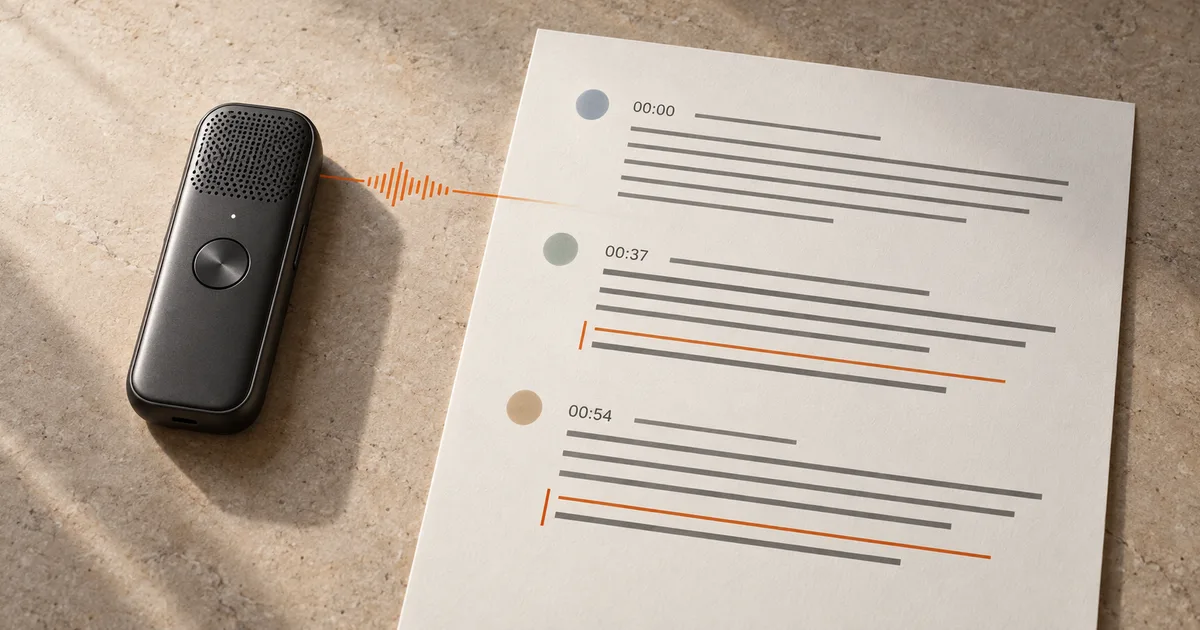
This is the edited result of a twelve-minute three-person planning call. The recording opens on the launch timeline, changes topic mid-meeting, and records two explicit decisions. The timestamps are the editor view; the segments keep each speaker's turn so you can follow who said what.
Source: recorded meeting, 1:15 excerpt (English, three participants)
Edited transcript with speakers and timestamps
Both decisions sit on their own timestamps, 00:37 and 00:54, so a reviewer can replay the exact moment a decision was made instead of trusting a paraphrase. The topic change at 00:46 is kept as a separate passage, and a name the recognizer misheard, such as Kestrel, can be corrected in the editor once you check the audio.
Start from the recording that already exists and let the workspace produce a speaker-labelled, timestamped draft. The task, the editor, and the download stay on this page.
Upload the meeting audio or video from this device, record the room in the browser, or import a supported public media URL. Use one file per meeting so the timeline, the speakers, and the transcript stay easy to check. This workflow starts from a recording, so no meeting bot has to be invited to the call.
Set the spoken language when you know it, and enable speaker labels for a multi-person meeting. The first pass returns a timestamped draft that groups each speaker's turns; if you are unsure how many people spoke, let the tool group voices and rename the groups afterwards.
The workspace states the current minute and file-size limits and shows the credit cost against your balance before the task runs. Nothing is generated until you start, so opening the page never spends transcription minutes, and the finished task is saved in your recordings with the meeting-transcription source tag.
A meeting transcript is useful when you can trace a decision back to the moment it was made. The timeline and the speaker turns are what make that check possible.
Scan the timestamps to see how the conversation moved, including the point where the topic changed. Decisions, options that were raised, and unresolved questions often sit close together, so the timeline keeps a settled decision separate from a discussion that never landed.
The tool groups voices; it does not know who they are. Rename each group to the real participant or role, and the override is saved with the task so the download carries the names you chose. Check the first few minutes where people address each other before you commit to a mapping.
Replay the timestamp behind any decision, owner, date, or number before you rely on it. Automatic recognition can mishear a product name, a percentage, or a deadline, and a decision that cannot be traced back to the recording is hard to defend later.
Once the wording is accurate, the transcript becomes a searchable record of the meeting, the deliverable you can quote, and the source material for minutes.
Correct names, numbers, acronyms, and specialist vocabulary directly in the editor, and keep the speaker turns in the segments view. Your edits are saved with the task, so the version you download matches the version you reviewed on screen instead of the original machine draft.
Select the passages you need for notes, minutes, or a follow-up message without leaving the page. Keep the timestamps when you plan to quote the recording, so anyone reading the note can find the exact moment a decision was stated.
Download TXT for a plain, portable transcript, or use the workspace exports for DOCX, PDF, JSON, SRT, and VTT when the words need to become a document, structured data, or captions. Download after saving so the exported file matches the current version.
The comparison describes the checked products at a high level. It does not repeat competitor pricing, ratings, certifications, or accuracy claims, and naming a product is not an endorsement. Confirm every provider's live terms before you process a long or confidential meeting.
| Decision factor | Whisper AI | Otter.ai | Happy Scribe |
|---|---|---|---|
| How the meeting enters the workflow | Upload a recorded meeting, record in the browser, or import a supported media URL from this page; no bot joins the call | Confirm whether the live product needs a bot in the meeting, a calendar connection, or an uploaded file | Confirm the current upload, recording, and URL options on its live tool |
| Speaker labels and timeline | Speaker groups and timestamps are kept together, and participant names can be renamed and saved with the task | Speaker separation is offered; confirm how names are stored and whether the live plan includes it | Confirm the current speaker and timestamp behaviour on its live tool |
| Editing before export | Correct names, numbers, and wording in place, replay a timestamp, and keep edits with the task | An editor is offered; confirm which edits the current plan allows | An editor is offered; confirm which edits the current plan allows |
| Download formats | TXT download, plus DOCX, PDF, JSON, SRT, and VTT from the same edited transcript | Confirm the live export list and any plan gating | Confirm the live export list and any plan gating |
| Where the meeting lives afterwards | The finished task is saved in your recordings and tagged with the meeting-transcription source | Confirm how the live product stores and reopens meetings | Confirm how the live product stores and reopens meetings |
| Starting cost and control | Verified new accounts start with the current transcription-minute allowance, shown before the task runs | Check the current free and paid plan terms | Check the current free and paid plan terms |
Whisper AI is the strongest fit when the meeting already happened, no bot can join, and you want a speaker-labelled, timestamped transcript you can edit and download from one page while keeping the task in your recordings. A live meeting assistant can fit teams that want a participant in every call, and a document-focused service can fit published transcripts, but confirm each provider's current meeting, speaker, and export terms before you depend on it.
Yes. Upload the meeting audio or video from this page, record the room in the browser, or import a supported public media URL. The workspace creates a timestamped transcript with speaker groups, so you do not need a bot to have attended the call. Keep one file per meeting so the timeline and the speakers stay easy to check.
Yes. The tool groups voices but cannot know who they are, so rename each speaker group to the real participant or role in the editor. Your names are saved with the task, and the export is built from the version you saved, so the download shows the people you named rather than generic labels.
Review the transcript first, then use the meeting minutes generator to produce an overview, decisions, and action items from the same recording. The full transcript stays beside the minutes as the source, and you can correct owners, dates, and wording against the timestamps before you share the draft.
No. This workflow starts from a recording or a browser capture, so nothing has to be invited to the call and the meeting does not need a calendar connection. You do need an audio or video file with audible speech, and browser recording captures the room or a shared tab rather than every remote participant by default.
Yes. The transcript keeps its speaker turns and timestamps in the workspace, and TXT can include the timestamps when you need them; the other exports, DOCX, PDF, JSON, SRT, and VTT, are built from the same edited transcript. Keep the timestamps when someone may need to replay the original moment later.
Transcription is a paid task that runs against your credit balance, and the workspace shows the minute and file-size limits and the cost estimate before the task starts. Opening the page never charges credits, and signing in, refreshing, or returning from a recharge restores the existing task instead of starting a second one.
Use it to write minutes, extract decisions and action items, quote a passage in a follow-up message, or produce captions from the same text. The transcript stays in your recordings, so you can reopen the meeting, search it, and export another format without transcribing the audio again.
Written and checked by the Whisper AI Editorial Team · Last reviewed 2026-09-23 · Editorial policy