
Dashboard
New Transcription
0 min
How do you want to transcribe?
Upload Audio
Estimated cost: 0 min
Free minutes are included. Upload a file or record audio to start.
Start podcast transcription from the episode file you already have. Upload a single local recording in the workspace below, choose the spoken language, and run a real transcription task without leaving this page. When the draft is ready, review the speaker segments and timestamps, correct names, numbers, and sponsor reads, then copy the passages you need or download the edited text for your publishing workflow. Verified accounts use the current transcription allowance, shown before the task starts.
Dashboard
How do you want to transcribe?
Free minutes are included. Upload a file or record audio to start.
Verified accounts use the current Whisper AI transcription allowance, shown before the task starts, and finished episodes are saved in your recordings with the podcast-transcription source tag.
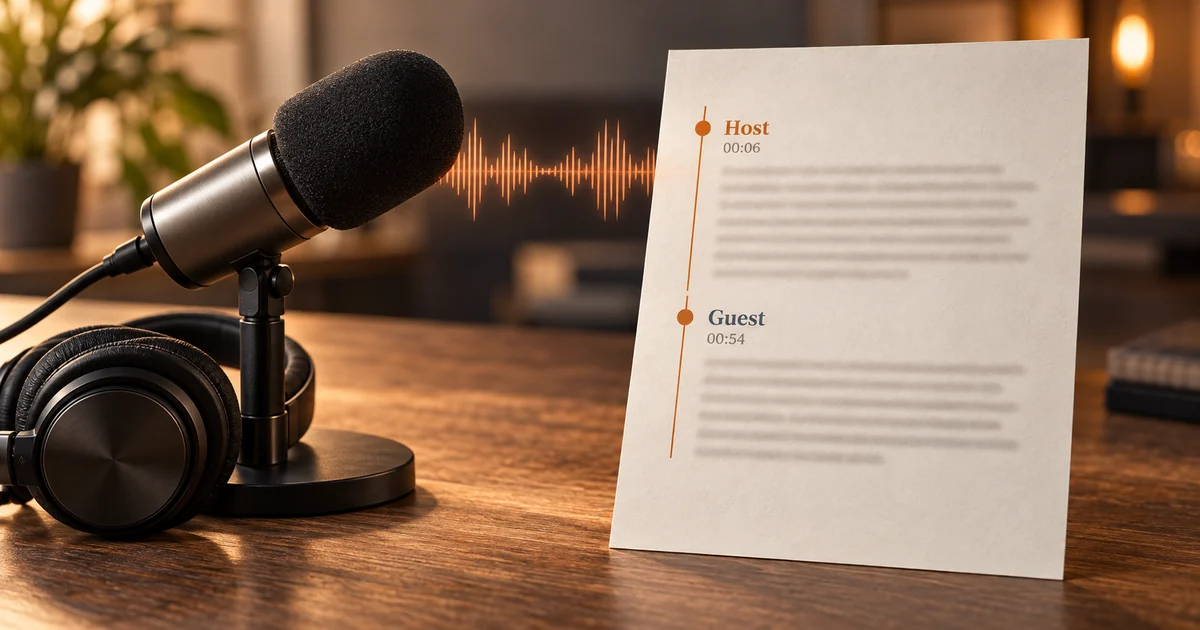
This is the edited transcript for our own 87-second English host-and-guest clip: a short music intro, two speakers taking turns, several numbers, and one deliberate pause. The timestamps show the editor view; a plain TXT export contains the text without them.
Source: original 87-second host-and-guest episode (English, locally synthesized) with a six-second music intro and one deliberate pause
Edited TXT result
A machine draft can mishear names, numbers, sponsor copy, and overlapping speech, and a music bed can produce stray words, so check the edited transcript against the audio before you publish it.
Start from one local episode file and let the workspace build a timestamped draft. Keep the task, the editor, and the download in a single place so nothing gets pushed to a different tool.
Choose one podcast recording from this device, such as an MP3, M4A, or WAV export from your recorder or editing app. This page starts from a local file rather than a Spotify, Apple Podcasts, or RSS page URL, so download the episode first if you only have a streaming link. One episode per task keeps speaker turns and timing easy to check.
Pick the spoken language before you start so the recognition pass is not guessing from a short intro, then begin the task. The workspace states the current minute and file-size limits and the credit cost against your balance first, and opening the page never spends transcription minutes.
When the task finishes, scan the draft for host and guest names, episode numbers, product names, and sponsor reads. The first pass is a draft to correct, not a finished script, and long episodes take longer to process than short clips.
A two-host or interview episode needs a readable speaker layout. Review the voice groups and the timing before you treat the transcript as publishable.
Enable speaker separation when the episode really contains more than one voice. The generated labels group passages by voice, so rename them to the real host and guest names after checking the recording; the labels are voice groups, not verified identities.
Use the timestamp on any uncertain line to jump back to that moment in the audio, then correct the wording. This is where you catch crosstalk, a host talking over a guest, and quick asides that the draft merged into one turn.
Music intros and outros can produce stray words or invented lyrics, so delete any text that does not match the audio. Keep a short marker for the intro if your workflow needs one, and confirm that the spoken section starts where the host begins.
The edited transcript is the source for show notes, a website article, captions, and a searchable episode archive. Keep the corrected version and export the shape you need.
Select and copy the host or guest passages you need for show notes, a newsletter, or a quote card without leaving the page. Keep the timestamps on any direct quote so a listener can find the original moment.
Use the transcript as the base for an episode page, then tighten the spoken wording for readers. Edits are saved with the task, so the text you export matches the version you reviewed on screen instead of an older machine draft.
Download TXT for a portable transcript, or use the workspace exports for DOCX, JSON, SRT, and VTT when the words need to become a document, structured data, or timed captions for a video version of the episode.
Comparison describes the checked pages at a high level. It does not repeat competitor pricing, ratings, certifications, or accuracy claims, and naming a product is not an endorsement.
| Decision factor | Whisper AI | Descript | Riverside |
|---|---|---|---|
| Starting from a local episode | Upload one local podcast recording on this page and start a real transcription task from the first screen | Confirm the current import, upload, and recording options on its live tool | Confirm whether editing a finished episode or a live recording fits your workflow |
| Speaker turns and timing | Enable speaker separation, rename the voice groups, and replay any timestamp to confirm a turn | Speaker labels are offered; confirm the latest behavior and plan limits | Speaker labels are offered; confirm the latest behavior and plan limits |
| Editing before export | Fix names, numbers, and sponsor copy, copy passages, and keep edits saved with the task before downloading | An editor is offered; confirm which edits the current plan allows | An editor is offered; confirm which edits the current plan allows |
| Download formats | TXT download, plus DOCX, JSON, SRT, and VTT from the same transcript | Confirm the live export list and any plan gating | Confirm the live export list and any plan gating |
| Where the episode lives | The finished episode is saved in your recordings and tagged with its podcast-transcription source | Confirm how the live product stores and reopens projects | Confirm how the live product stores and reopens projects |
Whisper AI is the strongest fit when you want to start from a local podcast episode, see speaker turns and timestamps in an editor, keep the task with a traceable source, and download the edited text for show notes, a website article, or captions without switching to a separate workspace. Check each product's live terms before processing a long or confidential episode.
Yes. Upload a single local episode recording, such as an MP3, M4A, or WAV export, and start one transcription task from this page. The default on this page is a file upload, so you can begin with the episode you already have. This page is built around one episode at a time; it does not batch a full season or pull an episode from a Spotify, Apple Podcasts, or RSS page URL.
Yes. When the episode really contains more than one voice, enable speaker separation and the transcript groups nearby passages into voice segments. Rename those groups to the real host and guest names after you check the recording. The labels are generated voice groups rather than verified identities, so always confirm who was speaking before you publish a quote.
Yes. After you correct the draft, download the edited transcript as TXT for a portable copy, or export DOCX, JSON, SRT, or VTT from the same workspace output. Your edits are saved with the task, so the file you download matches the version on screen. For a website article or show notes, copy the passages you need or open the TXT and format it in your publishing tool.
Yes, once a task has been created. Signing in, returning from a recharge, or refreshing restores the task and its status instead of starting a second transcription, so you are not charged twice. If a refresh happens before the task is created and the browser no longer holds the local file, choose the episode again to start.
A music intro can produce stray words or invented lyrics in the draft, so remove any transcript text that does not match the audio and keep a short marker if your workflow needs one. Confirm that the spoken transcript starts where the host begins, and check the end of the episode for the same issue in the outro.
Yes. The audio you submit is uploaded and stored so the task can be processed and reopened later. Review the privacy policy before uploading a guest interview, an unreleased episode, or any material you are not authorized to process.
Written and checked by the Whisper AI Editorial Team · Last reviewed 2026-09-23 · Editorial policy